Workflows
How to automatically send monday.com file uploads to Google Drive
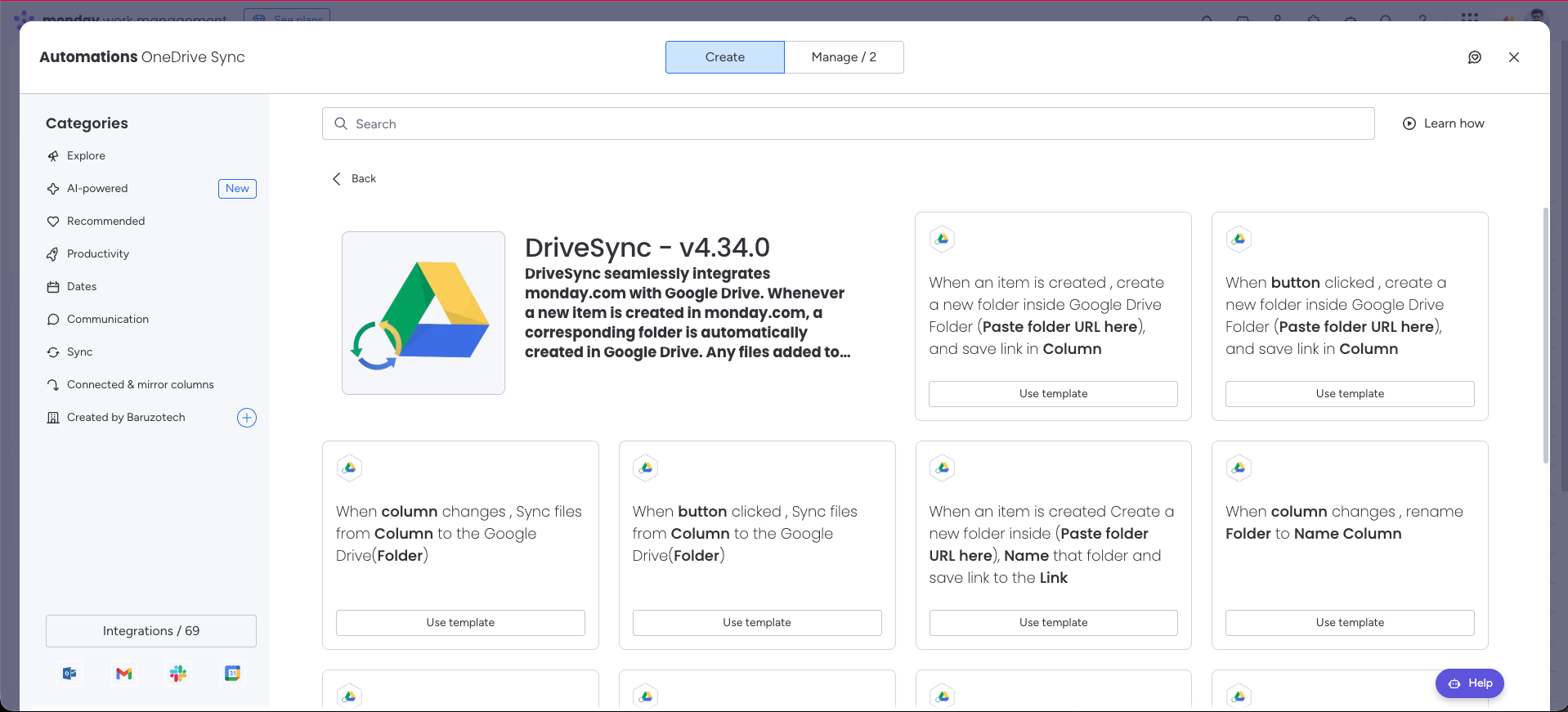
Use the column-change automation with your Files column as the trigger to copy new uploads into the item’s linked Google Drive folder.
%0A%0A%23%23%20When%20to%20use%20this%20template%0A%0AChoose%20your%20Files%20column%20as%20both%20the%20trigger%20and%20source%20to%20copy%20newly%20uploaded%20files.%0A%0A%7C%20Trigger%20%7C%20Action%20%7C%0A%0A%7C%20---%20%7C%20---%20%7C%0A%0A%7C%20When%20a%20column%20changes%20%7C%20Sync%20files%20from%20a%20selected%20column%20to%20the%20Google%20Drive%20folder.%20%7C%0A%0A%23%23%20Configure%20the%20template%0A%0A1.%20Open%20your%20board%E2%80%99s%20Integrate%20area%20and%20find%20DriveSync.%0A%0A2.%20Select%20the%20template%20matching%20this%20trigger%20and%20action.%0A%0A3.%20Connect%20your%20accounts%20if%20prompted%2C%20then%20configure%20the%20fields%20below.%0A%0A4.%20Save%20the%20automation%20to%20your%20board.%0A%0A%7C%20Field%20%7C%20Configuration%20%7C%0A%0A%7C%20---%20%7C%20---%20%7C%0A%0A%7C%20Trigger%20column%20%7C%20Choose%20the%20column%20whose%20changes%20start%20this%20automation.%20%7C%0A%0A%7C%20File%20column%20%7C%20Choose%20the%20column%20containing%20the%20files%20to%20copy.%20%7C%0A%0A%7C%20Folder%20%7C%20Select%20the%20column%20containing%20the%20destination%20folder%20link.%20%7C%0A%0A%23%23%20Run%20a%20first%20test%0A%0AMake%20sure%20the%20folder%20link%20exists%2C%20then%20upload%20a%20small%20test%20file%20to%20the%20mapped%20source%20column.%0A%0A%3E%20Use%20a%20sample%20item%20and%20verify%20the%20result%20in%20Drive%20before%20applying%20the%20workflow%20across%20your%20board.%20Avoid%20overlapping%20automations%20that%20could%20start%20the%20same%20folder-creation%20action.%0A%0A%23%23%20Explore%20related%20workflows%0A%0A%5BAll%20automation%20templates%5D(https%3A%2F%2Fdrivesync.baruzotech.com%2Fdocs%2Ftemplates%2F)%0A%0A%5BBuild%20a%20custom%20automation%5D(https%3A%2F%2Fdrivesync.baruzotech.com%2Fdocs%2Fcustom-automations%2F)%0A%0ASupport%3A%20drivesync%40baruzotech.com) Ask ChatGPT
Ask ChatGPT%0A%0A%23%23%20When%20to%20use%20this%20template%0A%0AChoose%20your%20Files%20column%20as%20both%20the%20trigger%20and%20source%20to%20copy%20newly%20uploaded%20files.%0A%0A%7C%20Trigger%20%7C%20Action%20%7C%0A%0A%7C%20---%20%7C%20---%20%7C%0A%0A%7C%20When%20a%20column%20changes%20%7C%20Sync%20files%20from%20a%20selected%20column%20to%20the%20Google%20Drive%20folder.%20%7C%0A%0A%23%23%20Configure%20the%20template%0A%0A1.%20Open%20your%20board%E2%80%99s%20Integrate%20area%20and%20find%20DriveSync.%0A%0A2.%20Select%20the%20template%20matching%20this%20trigger%20and%20action.%0A%0A3.%20Connect%20your%20accounts%20if%20prompted%2C%20then%20configure%20the%20fields%20below.%0A%0A4.%20Save%20the%20automation%20to%20your%20board.%0A%0A%7C%20Field%20%7C%20Configuration%20%7C%0A%0A%7C%20---%20%7C%20---%20%7C%0A%0A%7C%20Trigger%20column%20%7C%20Choose%20the%20column%20whose%20changes%20start%20this%20automation.%20%7C%0A%0A%7C%20File%20column%20%7C%20Choose%20the%20column%20containing%20the%20files%20to%20copy.%20%7C%0A%0A%7C%20Folder%20%7C%20Select%20the%20column%20containing%20the%20destination%20folder%20link.%20%7C%0A%0A%23%23%20Run%20a%20first%20test%0A%0AMake%20sure%20the%20folder%20link%20exists%2C%20then%20upload%20a%20small%20test%20file%20to%20the%20mapped%20source%20column.%0A%0A%3E%20Use%20a%20sample%20item%20and%20verify%20the%20result%20in%20Drive%20before%20applying%20the%20workflow%20across%20your%20board.%20Avoid%20overlapping%20automations%20that%20could%20start%20the%20same%20folder-creation%20action.%0A%0A%23%23%20Explore%20related%20workflows%0A%0A%5BAll%20automation%20templates%5D(https%3A%2F%2Fdrivesync.baruzotech.com%2Fdocs%2Ftemplates%2F)%0A%0A%5BBuild%20a%20custom%20automation%5D(https%3A%2F%2Fdrivesync.baruzotech.com%2Fdocs%2Fcustom-automations%2F)%0A%0ASupport%3A%20drivesync%40baruzotech.com) Ask Claude
Ask ClaudeAutomation preview#
When to use this template#
Choose your Files column as both the trigger and source to copy newly uploaded files.
| Trigger | Action |
|---|---|
| When a column changes | Sync files from a selected column to the Google Drive folder. |
Configure the template#
- 1
Open your board’s Integrate area and find DriveSync.
- 2
Select the template matching this trigger and action.
- 3
Connect your accounts if prompted, then configure the fields below.
- 4
Save the automation to your board.
| Field | Configuration |
|---|---|
| Trigger column | Choose the column whose changes start this automation. |
| File column | Choose the column containing the files to copy. |
| Folder | Select the column containing the destination folder link. |
Run a first test#
Make sure the folder link exists, then upload a small test file to the mapped source column.
Need a hand with your setup?Contact support