Workflows
How to sync files to Google Drive when a monday.com status changes
Use a status change or another monday.com trigger to run a DriveSync action. Choose when files are copied or folders are created.
%0A%0ASupport%3A%20drivesync%40baruzotech.com) Ask ChatGPT
Ask ChatGPT%0A%0ASupport%3A%20drivesync%40baruzotech.com) Ask Claude
Ask ClaudeChoose a trigger and a DriveSync action#
Use monday.com’s custom automation builder when your process needs a different trigger from the ready-made templates. For example, a status change can start a DriveSync action.
- 1
Open the custom automation builder on your board.
- 2
Choose the trigger and configure its values or conditions.
- 3
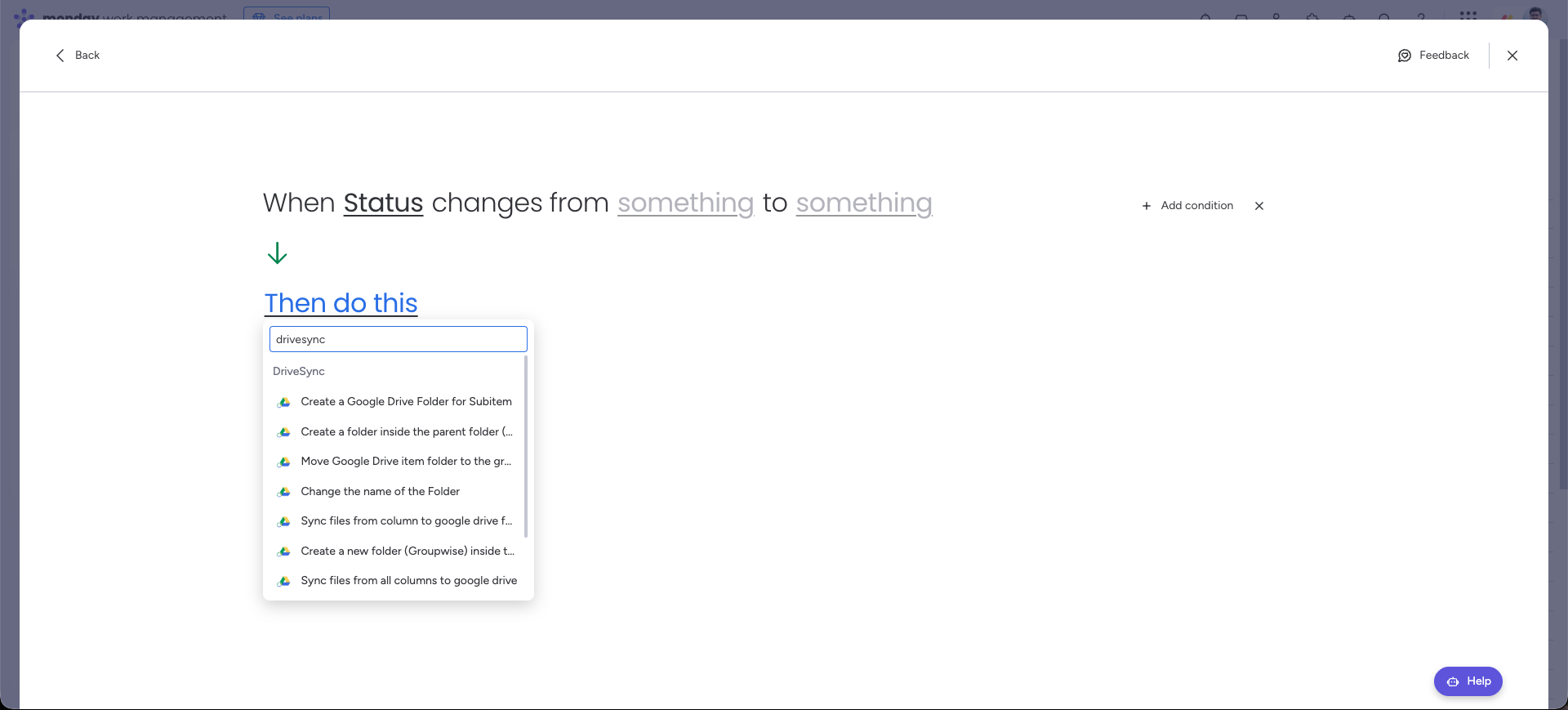
In Then do this, search for DriveSync.
- 4
Select the action that fits your workflow.
- 5
Configure the action’s required folder, column, and naming inputs.
- 6
Save the automation and test it on one sample item.
Available action types#
- Create a Google Drive folder for a subitem.
- Create a folder inside a parent folder.
- Create folders using group-based organization.
- Move an item’s Drive folder to a group folder.
- Change the name of a folder.
- Sync files from a selected column.
- Sync files from all columns.
Example workflow#
Suppose your team should copy files only when a project becomes Ready for delivery. Choose a status-change trigger, set the relevant status transition, and select the DriveSync file-sync action. Map its file source and destination folder, then test the transition.
Custom automation reference#