Workflows
How to sync files from multiple monday.com columns to Google Drive
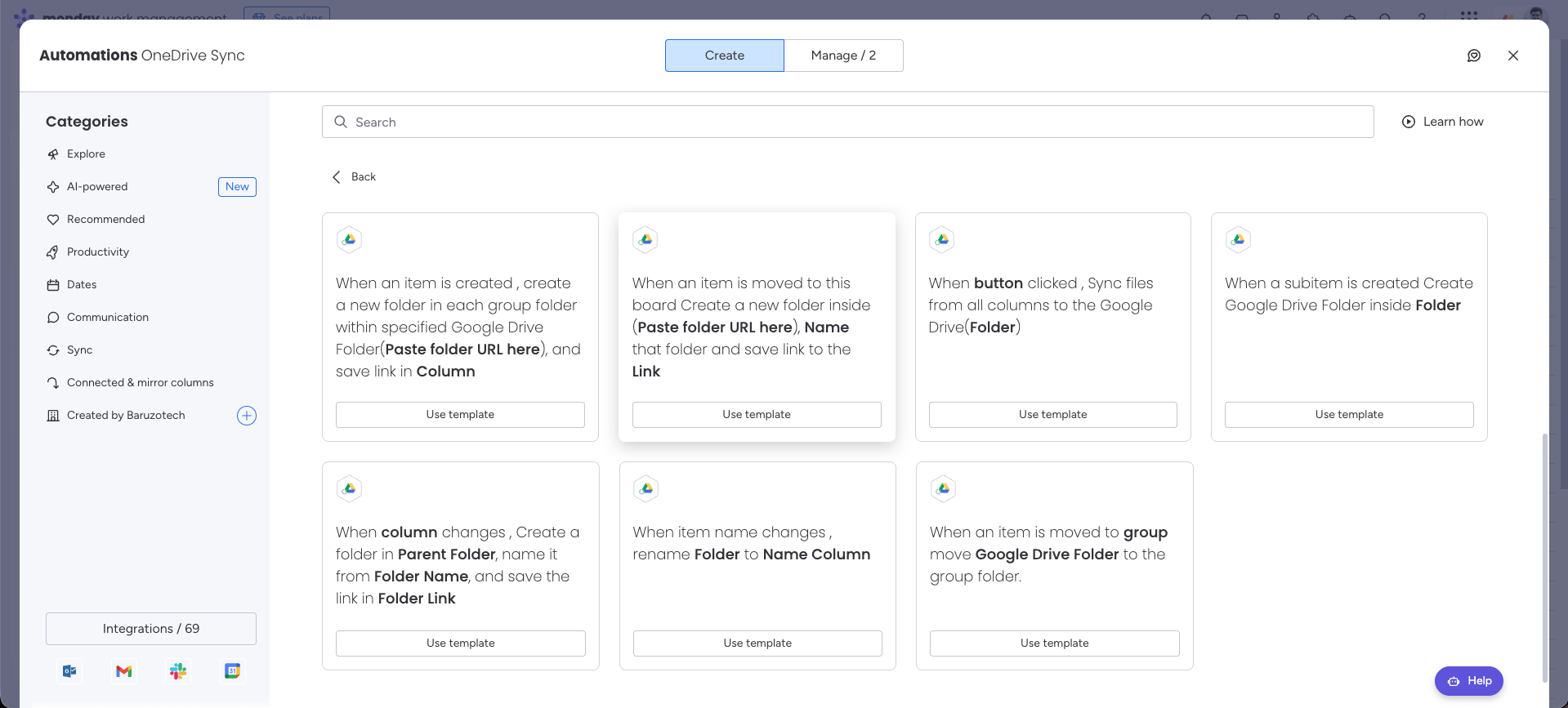
Use the all-columns button automation to copy files from an item’s file columns into one linked Google Drive folder.
%0A%0A%23%23%20When%20to%20use%20this%20template%0A%0ACollect%20the%20item%E2%80%99s%20brief%2C%20artwork%2C%20and%20final%20deliverables%20into%20one%20Drive%20folder.%0A%0A%7C%20Trigger%20%7C%20Action%20%7C%0A%0A%7C%20---%20%7C%20---%20%7C%0A%0A%7C%20When%20a%20button%20is%20clicked%20%7C%20Sync%20files%20from%20all%20columns%20to%20the%20Google%20Drive%20folder.%20%7C%0A%0A%23%23%20Configure%20the%20template%0A%0A1.%20Open%20your%20board%E2%80%99s%20Integrate%20area%20and%20find%20DriveSync.%0A%0A2.%20Select%20the%20template%20matching%20this%20trigger%20and%20action.%0A%0A3.%20Connect%20your%20accounts%20if%20prompted%2C%20then%20configure%20the%20fields%20below.%0A%0A4.%20Save%20the%20automation%20to%20your%20board.%0A%0A%7C%20Field%20%7C%20Configuration%20%7C%0A%0A%7C%20---%20%7C%20---%20%7C%0A%0A%7C%20Button%20%7C%20Select%20the%20button%20that%20starts%20the%20copy.%20%7C%0A%0A%7C%20Folder%20%7C%20Choose%20the%20column%20holding%20the%20destination%20folder%20link.%20%7C%0A%0A%23%23%20Run%20a%20first%20test%0A%0AAdd%20small%20test%20files%20to%20two%20file%20columns%20and%20verify%20both%20arrive%20in%20the%20destination.%0A%0A%3E%20Use%20a%20sample%20item%20and%20verify%20the%20result%20in%20Drive%20before%20applying%20the%20workflow%20across%20your%20board.%20Avoid%20overlapping%20automations%20that%20could%20start%20the%20same%20folder-creation%20action.%0A%0A%23%23%20Explore%20related%20workflows%0A%0A%5BAll%20automation%20templates%5D(https%3A%2F%2Fdrivesync.baruzotech.com%2Fdocs%2Ftemplates%2F)%0A%0A%5BBuild%20a%20custom%20automation%5D(https%3A%2F%2Fdrivesync.baruzotech.com%2Fdocs%2Fcustom-automations%2F)%0A%0A%23%23%20Common%20questions%0A%0A%23%23%23%20Do%20files%20from%20different%20columns%20go%20into%20separate%20folders%3F%0A%0AThis%20automation%20copies%20the%20item%E2%80%99s%20files%20into%20the%20single%20destination%20folder%20selected%20in%20its%20folder-link%20column.%20It%20does%20not%20assign%20a%20separate%20destination%20folder%20to%20each%20source%20column.%0A%0ASupport%3A%20drivesync%40baruzotech.com) Ask ChatGPT
Ask ChatGPT%0A%0A%23%23%20When%20to%20use%20this%20template%0A%0ACollect%20the%20item%E2%80%99s%20brief%2C%20artwork%2C%20and%20final%20deliverables%20into%20one%20Drive%20folder.%0A%0A%7C%20Trigger%20%7C%20Action%20%7C%0A%0A%7C%20---%20%7C%20---%20%7C%0A%0A%7C%20When%20a%20button%20is%20clicked%20%7C%20Sync%20files%20from%20all%20columns%20to%20the%20Google%20Drive%20folder.%20%7C%0A%0A%23%23%20Configure%20the%20template%0A%0A1.%20Open%20your%20board%E2%80%99s%20Integrate%20area%20and%20find%20DriveSync.%0A%0A2.%20Select%20the%20template%20matching%20this%20trigger%20and%20action.%0A%0A3.%20Connect%20your%20accounts%20if%20prompted%2C%20then%20configure%20the%20fields%20below.%0A%0A4.%20Save%20the%20automation%20to%20your%20board.%0A%0A%7C%20Field%20%7C%20Configuration%20%7C%0A%0A%7C%20---%20%7C%20---%20%7C%0A%0A%7C%20Button%20%7C%20Select%20the%20button%20that%20starts%20the%20copy.%20%7C%0A%0A%7C%20Folder%20%7C%20Choose%20the%20column%20holding%20the%20destination%20folder%20link.%20%7C%0A%0A%23%23%20Run%20a%20first%20test%0A%0AAdd%20small%20test%20files%20to%20two%20file%20columns%20and%20verify%20both%20arrive%20in%20the%20destination.%0A%0A%3E%20Use%20a%20sample%20item%20and%20verify%20the%20result%20in%20Drive%20before%20applying%20the%20workflow%20across%20your%20board.%20Avoid%20overlapping%20automations%20that%20could%20start%20the%20same%20folder-creation%20action.%0A%0A%23%23%20Explore%20related%20workflows%0A%0A%5BAll%20automation%20templates%5D(https%3A%2F%2Fdrivesync.baruzotech.com%2Fdocs%2Ftemplates%2F)%0A%0A%5BBuild%20a%20custom%20automation%5D(https%3A%2F%2Fdrivesync.baruzotech.com%2Fdocs%2Fcustom-automations%2F)%0A%0A%23%23%20Common%20questions%0A%0A%23%23%23%20Do%20files%20from%20different%20columns%20go%20into%20separate%20folders%3F%0A%0AThis%20automation%20copies%20the%20item%E2%80%99s%20files%20into%20the%20single%20destination%20folder%20selected%20in%20its%20folder-link%20column.%20It%20does%20not%20assign%20a%20separate%20destination%20folder%20to%20each%20source%20column.%0A%0ASupport%3A%20drivesync%40baruzotech.com) Ask Claude
Ask ClaudeAutomation preview#
When to use this template#
Collect the item’s brief, artwork, and final deliverables into one Drive folder.
| Trigger | Action |
|---|---|
| When a button is clicked | Sync files from all columns to the Google Drive folder. |
Configure the template#
- 1
Open your board’s Integrate area and find DriveSync.
- 2
Select the template matching this trigger and action.
- 3
Connect your accounts if prompted, then configure the fields below.
- 4
Save the automation to your board.
| Field | Configuration |
|---|---|
| Button | Select the button that starts the copy. |
| Folder | Choose the column holding the destination folder link. |
Run a first test#
Add small test files to two file columns and verify both arrive in the destination.
Common questions
Do files from different columns go into separate folders?
This automation copies the item’s files into the single destination folder selected in its folder-link column. It does not assign a separate destination folder to each source column.
Need a hand with your setup?Contact support