Workflows
How to create Google Drive folders in different locations from monday.com
Store a parent folder and folder name on each item, then use a column-change automation to create its folder in that item’s chosen location.
%0A%0A%23%23%20When%20to%20use%20this%20template%0A%0ARoute%20different%20items%20into%20different%20client%20folders%20using%20each%20item%E2%80%99s%20parent-folder%20value.%0A%0A%7C%20Trigger%20%7C%20Action%20%7C%0A%0A%7C%20---%20%7C%20---%20%7C%0A%0A%7C%20When%20a%20column%20changes%20%7C%20Create%20a%20folder%20in%20Parent%20Folder%2C%20name%20it%20from%20Folder%20Name%2C%20and%20save%20its%20link%20in%20Folder%20Link.%20%7C%0A%0A%23%23%20Configure%20the%20template%0A%0A1.%20Open%20your%20board%E2%80%99s%20Integrate%20area%20and%20find%20DriveSync.%0A%0A2.%20Select%20the%20template%20matching%20this%20trigger%20and%20action.%0A%0A3.%20Connect%20your%20accounts%20if%20prompted%2C%20then%20configure%20the%20fields%20below.%0A%0A4.%20Save%20the%20automation%20to%20your%20board.%0A%0A%7C%20Field%20%7C%20Configuration%20%7C%0A%0A%7C%20---%20%7C%20---%20%7C%0A%0A%7C%20Trigger%20column%20%7C%20Select%20the%20change%20that%20starts%20folder%20creation.%20%7C%0A%0A%7C%20Parent%20Folder%20%7C%20Choose%20the%20column%20containing%20the%20parent%20folder.%20%7C%0A%0A%7C%20Folder%20Name%20%7C%20Choose%20the%20source%20for%20the%20new%20folder%20name.%20%7C%0A%0A%7C%20Folder%20Link%20%7C%20Choose%20where%20the%20created%20folder%20URL%20will%20be%20stored.%20%7C%0A%0A%23%23%20Run%20a%20first%20test%0A%0APopulate%20the%20parent%20and%20name%20values%20before%20triggering%20the%20automation%20on%20a%20sample%20item.%0A%0A%3E%20Use%20a%20sample%20item%20and%20verify%20the%20result%20in%20Drive%20before%20applying%20the%20workflow%20across%20your%20board.%20Avoid%20overlapping%20automations%20that%20could%20start%20the%20same%20folder-creation%20action.%0A%0A%23%23%20Explore%20related%20workflows%0A%0A%5BAll%20automation%20templates%5D(https%3A%2F%2Fdrivesync.baruzotech.com%2Fdocs%2Ftemplates%2F)%0A%0A%5BBuild%20a%20custom%20automation%5D(https%3A%2F%2Fdrivesync.baruzotech.com%2Fdocs%2Fcustom-automations%2F)%0A%0A%23%23%20Common%20questions%0A%0A%23%23%23%20Should%20Parent%20Folder%20and%20Folder%20Link%20use%20the%20same%20column%3F%0A%0ANo.%20Keep%20the%20input%20parent-folder%20link%20and%20the%20output%20created-folder%20link%20in%20separate%20columns.%20The%20automation%20needs%20the%20parent%20before%20it%20creates%20and%20saves%20the%20child%20folder.%0A%0A%23%23%23%20What%20needs%20to%20be%20filled%20in%20before%20the%20automation%20runs%3F%0A%0AThe%20item%20needs%20its%20parent-folder%20value%20and%20folder-name%20value%20before%20the%20configured%20column%20change%20starts%20the%20action.%20Test%20one%20item%20to%20confirm%20the%20folder%20is%20created%20in%20the%20intended%20location.%0A%0ASupport%3A%20drivesync%40baruzotech.com) Ask ChatGPT
Ask ChatGPT%0A%0A%23%23%20When%20to%20use%20this%20template%0A%0ARoute%20different%20items%20into%20different%20client%20folders%20using%20each%20item%E2%80%99s%20parent-folder%20value.%0A%0A%7C%20Trigger%20%7C%20Action%20%7C%0A%0A%7C%20---%20%7C%20---%20%7C%0A%0A%7C%20When%20a%20column%20changes%20%7C%20Create%20a%20folder%20in%20Parent%20Folder%2C%20name%20it%20from%20Folder%20Name%2C%20and%20save%20its%20link%20in%20Folder%20Link.%20%7C%0A%0A%23%23%20Configure%20the%20template%0A%0A1.%20Open%20your%20board%E2%80%99s%20Integrate%20area%20and%20find%20DriveSync.%0A%0A2.%20Select%20the%20template%20matching%20this%20trigger%20and%20action.%0A%0A3.%20Connect%20your%20accounts%20if%20prompted%2C%20then%20configure%20the%20fields%20below.%0A%0A4.%20Save%20the%20automation%20to%20your%20board.%0A%0A%7C%20Field%20%7C%20Configuration%20%7C%0A%0A%7C%20---%20%7C%20---%20%7C%0A%0A%7C%20Trigger%20column%20%7C%20Select%20the%20change%20that%20starts%20folder%20creation.%20%7C%0A%0A%7C%20Parent%20Folder%20%7C%20Choose%20the%20column%20containing%20the%20parent%20folder.%20%7C%0A%0A%7C%20Folder%20Name%20%7C%20Choose%20the%20source%20for%20the%20new%20folder%20name.%20%7C%0A%0A%7C%20Folder%20Link%20%7C%20Choose%20where%20the%20created%20folder%20URL%20will%20be%20stored.%20%7C%0A%0A%23%23%20Run%20a%20first%20test%0A%0APopulate%20the%20parent%20and%20name%20values%20before%20triggering%20the%20automation%20on%20a%20sample%20item.%0A%0A%3E%20Use%20a%20sample%20item%20and%20verify%20the%20result%20in%20Drive%20before%20applying%20the%20workflow%20across%20your%20board.%20Avoid%20overlapping%20automations%20that%20could%20start%20the%20same%20folder-creation%20action.%0A%0A%23%23%20Explore%20related%20workflows%0A%0A%5BAll%20automation%20templates%5D(https%3A%2F%2Fdrivesync.baruzotech.com%2Fdocs%2Ftemplates%2F)%0A%0A%5BBuild%20a%20custom%20automation%5D(https%3A%2F%2Fdrivesync.baruzotech.com%2Fdocs%2Fcustom-automations%2F)%0A%0A%23%23%20Common%20questions%0A%0A%23%23%23%20Should%20Parent%20Folder%20and%20Folder%20Link%20use%20the%20same%20column%3F%0A%0ANo.%20Keep%20the%20input%20parent-folder%20link%20and%20the%20output%20created-folder%20link%20in%20separate%20columns.%20The%20automation%20needs%20the%20parent%20before%20it%20creates%20and%20saves%20the%20child%20folder.%0A%0A%23%23%23%20What%20needs%20to%20be%20filled%20in%20before%20the%20automation%20runs%3F%0A%0AThe%20item%20needs%20its%20parent-folder%20value%20and%20folder-name%20value%20before%20the%20configured%20column%20change%20starts%20the%20action.%20Test%20one%20item%20to%20confirm%20the%20folder%20is%20created%20in%20the%20intended%20location.%0A%0ASupport%3A%20drivesync%40baruzotech.com) Ask Claude
Ask ClaudeAutomation preview#
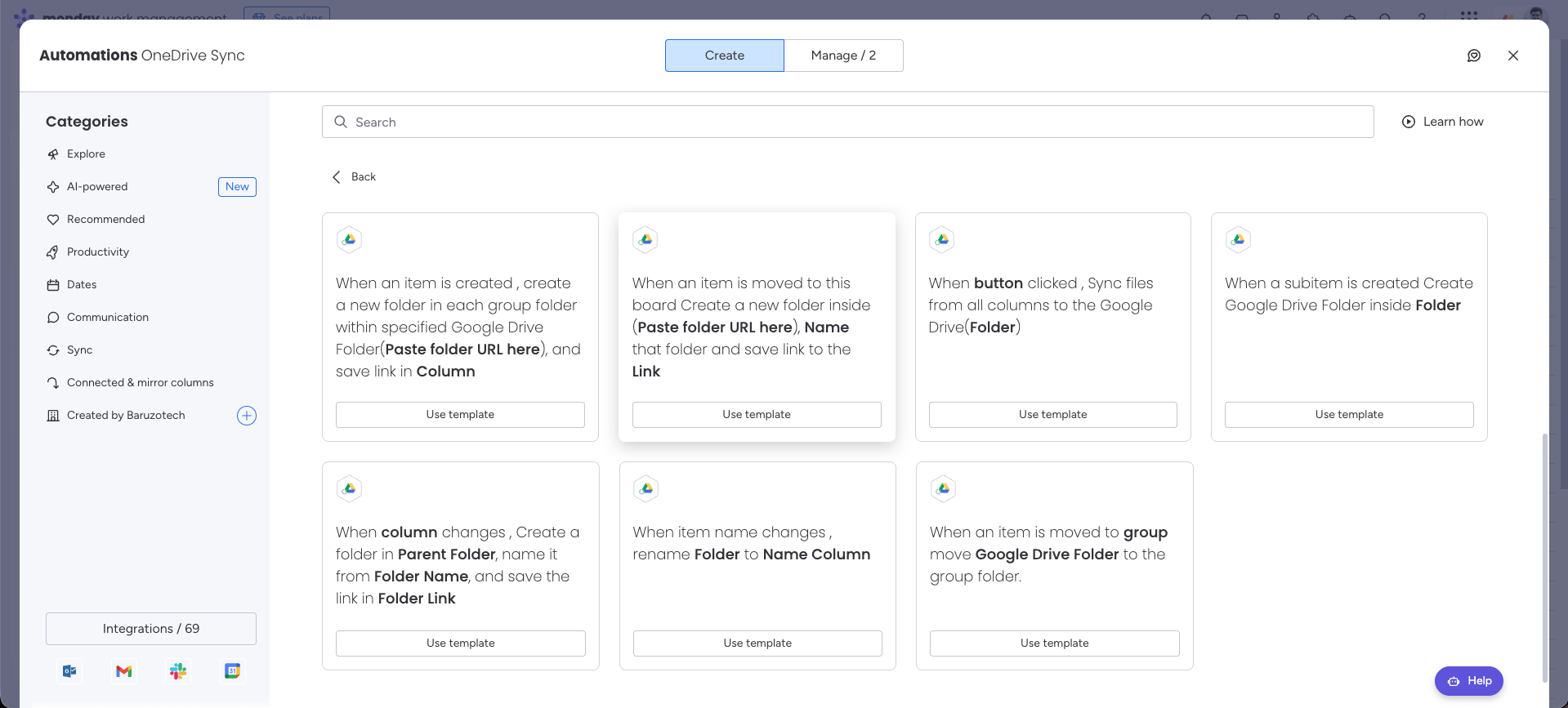
When to use this template#
Route different items into different client folders using each item’s parent-folder value.
| Trigger | Action |
|---|---|
| When a column changes | Create a folder in Parent Folder, name it from Folder Name, and save its link in Folder Link. |
Configure the template#
- 1
Open your board’s Integrate area and find DriveSync.
- 2
Select the template matching this trigger and action.
- 3
Connect your accounts if prompted, then configure the fields below.
- 4
Save the automation to your board.
| Field | Configuration |
|---|---|
| Trigger column | Select the change that starts folder creation. |
| Parent Folder | Choose the column containing the parent folder. |
| Folder Name | Choose the source for the new folder name. |
| Folder Link | Choose where the created folder URL will be stored. |
Run a first test#
Populate the parent and name values before triggering the automation on a sample item.
Common questions
Should Parent Folder and Folder Link use the same column?
No. Keep the input parent-folder link and the output created-folder link in separate columns. The automation needs the parent before it creates and saves the child folder.
What needs to be filled in before the automation runs?
The item needs its parent-folder value and folder-name value before the configured column change starts the action. Test one item to confirm the folder is created in the intended location.